
Connect your own email so messages reach the inbox
Emails sent straight from a web host are often filtered as spam. When you connect your own email, your quotes, invoices, reminders and review requests all go out through it, and reach the inbox. Allow about 15 minutes.
Before you start
- The email account you already use, for example Google Workspace, Gmail or Microsoft 365.
- Access to your email settings, or someone who can help you with them.
1. Choose your service
- Open Settings, then Email sending.
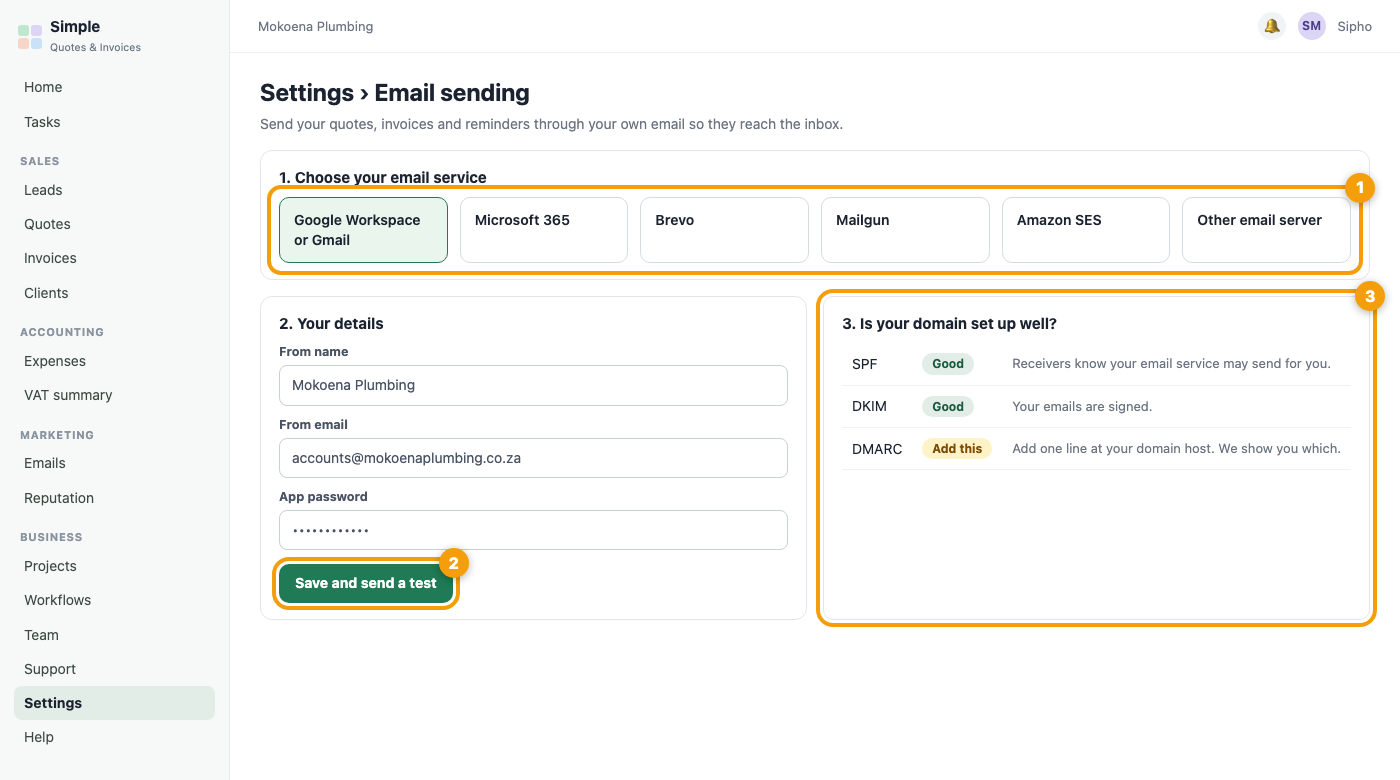
- Choose your service: Google Workspace or Gmail, Microsoft 365, Brevo, Mailgun, Amazon SES, or any other email server.
2. Follow the short steps for your service
The page shows the steps for the service you picked. Paste the details it asks for. Your password is stored encrypted and is never shown again.
3. Save and send a test
Press Save and send a test. Check that the test arrives in your inbox, not in spam.
4. Read the domain check
The page checks your domain (SPF, DKIM and DMARC) and tells you in plain words if anything should be fixed. If it asks you to add a line at your domain host, do that, then check again.
Tip: For campaigns to a group, also switch on email signing (DKIM) at your email service.
If the test does not arrive
- Look in spam, and mark it as not spam.
- Check the details you pasted, especially the password.
- Open Help, System health and use Send a test email to me.
Note: Quotes go as a link by default, so you can see when they are opened. You can also attach the PDF to quote and invoice emails in Settings, Sales and leads.
Was this article helpful?
Did not find it? Contact support