
Add your team and choose their roles
Give each person their own login so you can see who did what, and so each person sees only what their job needs.
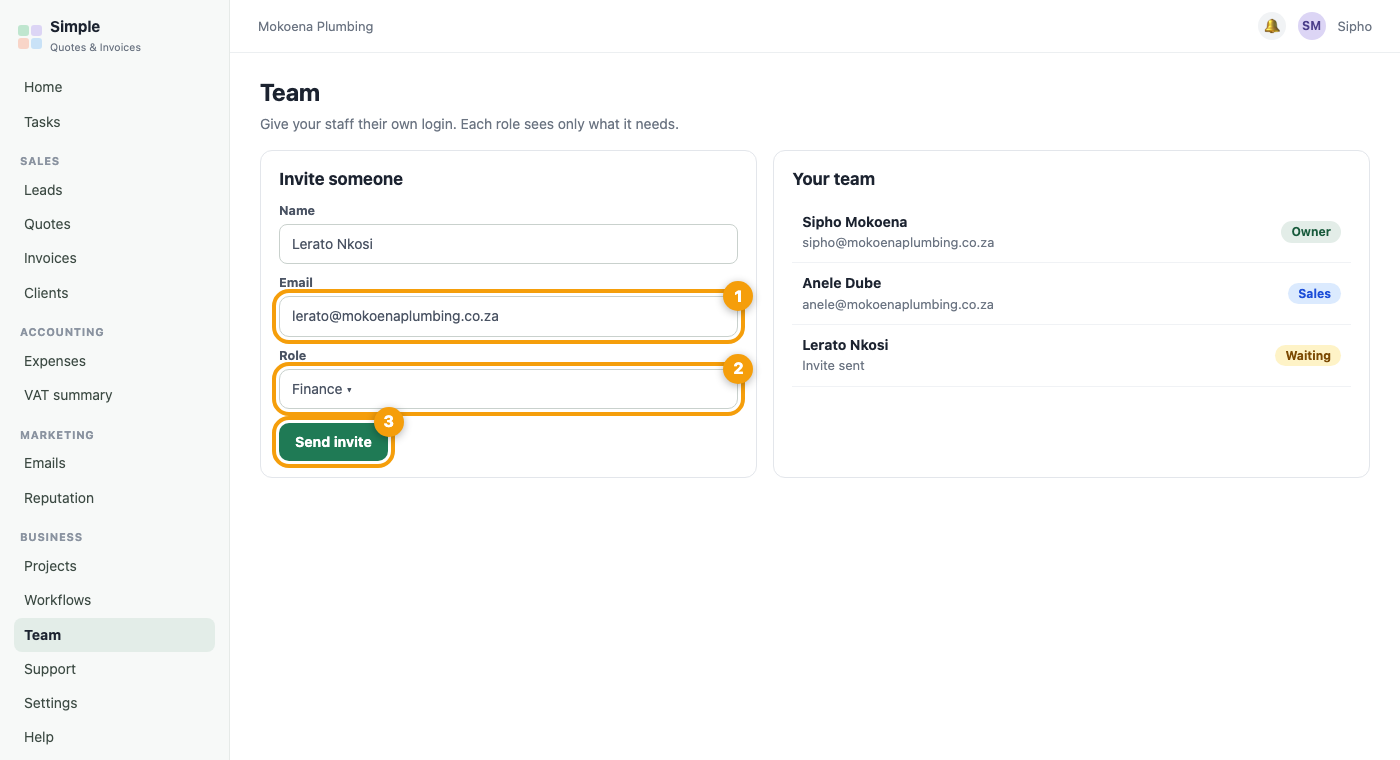
1. Invite someone
- Open Settings, then Team. Only owners can invite, change roles or remove people.
- Enter their name and email.
- Choose a role.
- Press Send invite.
2. What each role can do
- Owner: everything.
- Manager: runs the day to day (leads, clients, quotes, invoices, payments, reports, bulk tools and deleting) but cannot see banking details, payment keys, security, the team or backups.
- Sales: works their own leads and quotes, adds and edits clients, views invoices, with no payments or money reports.
- Finance: works with the money side.
3. Who sees which leads
Sales and managers see only the leads assigned to them. Owners see everyone’s. You can tick see everyone’s leads for a particular manager. New website leads can go to nobody, to one person, or take turns between your Sales people.
4. What the new person does
They get an email with a link to a Choose your password page in your dashboard (at least 12 characters). The link works for one day. After saving they go straight to the dashboard. Anyone who forgets a password uses Forgot your password? on the sign-in page.
5. When someone leaves
Open the Team page and press Remove on their row. Their login is deleted and their leads become unassigned, so you can hand them to someone else.
Note: Your plan sets how many users you can have. You can ask for extra users from My account, Your plan.
Keep it safe
- The dashboard locks after a period without activity (15 minutes by default).
- Anyone can add a passkey and sign in with Touch ID or Face ID.
- Staff only get the dashboard, and only the parts their role allows.
Was this article helpful?
Did not find it? Contact support