
Set up the client portal
The client portal is a private page where each client sees only their own quotes, invoices and statement. They sign in with an emailed link, so there are no passwords to forget.
What clients can do there
- See their invoices, quotes and statement.
- Accept and sign a quote with a typed name.
- Pay an invoice online.
Before you start
- The client portal switched on under Settings. It is part of the Growth plan and above.
- An email address saved on the client profile.
1. Invite a client
- Open the client.
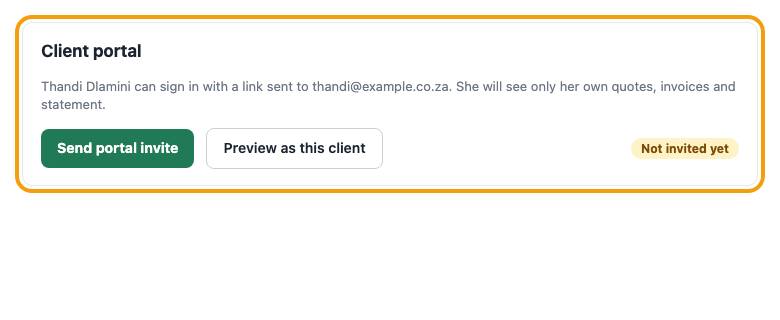
- Find the Client portal box and press Send portal invite.
- The client gets an email with a sign-in link. A link works once and lasts 15 minutes, and they can ask for a new one.
2. See what your client sees
In the same box press Preview as this client. Buttons that change anything are switched off in a preview, so you cannot do anything by accident.
3. Show a document to a client without emailing it
On a draft quote or invoice use Mark as sent (no email). It then appears in the portal and can be accepted or paid there. Drafts are never shown to clients.
If a client cannot get in
- Check the email address on the client profile matches the one they use.
- Check access has not been revoked. You can Revoke or Restore access at any time.
- Ask them to request a new sign-in link.
Tip: Your own logo and colour show throughout the portal, with one small line at the foot: Simple Quotes and Invoices, Powered by Grapevine.
Was this article helpful?
Did not find it? Contact support