
Let clients sign quotes and pay a deposit
A deposit confirms the job and protects your time. This guide shows how to ask for a deposit, offer a discount, and let your client sign and pay.
1. Add a deposit to the quote
- On the quote form choose Deposit.
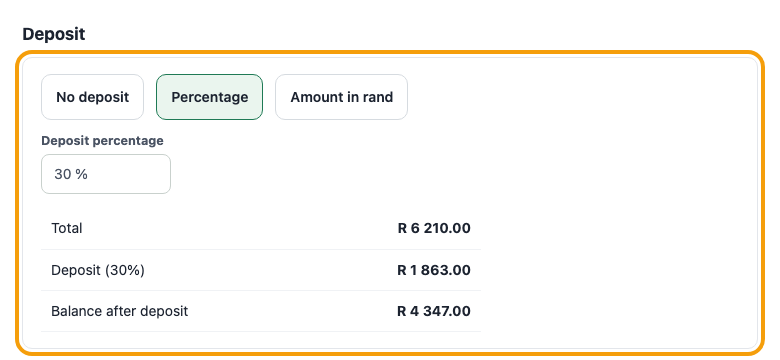
- Pick a percentage or an amount in rand and type the value.
- The quote still shows the full total, plus the Deposit and the balance after it.
2. Add a discount (optional)
Choose Discount, pick a percentage or a rand amount, and type the value. The discount comes off before VAT, so the VAT goes down with it. A deposit is worked out on the discounted total.
3. Send the quote
Send it by email or WhatsApp. It goes as a link, so you can see when your client opens it, and the page has a Download PDF button.
4. Your client signs
The public link lets anyone with it view, download and print, but it cannot be signed there. Your client presses Sign in to accept, gets an emailed link to the client portal, and signs inside it by typing their full name and ticking the agreement line. The date, time and device are kept with the quote and a signed PDF is created.
5. Take the deposit
- Once the quote is sent or accepted, press Create deposit invoice.
- Send it. A client who accepts a quote with a deposit can pay the deposit straight away.
6. Convert to the final invoice
When the job is done, press Convert to invoice. The deposit invoice is taken off automatically, so the client is never billed twice.