
Your first quote, from start to paid
Follow one job all the way through: create a quote, send it, turn it into an invoice, and get paid. Allow about 10 minutes.
1. Add the client
Open Clients and add the person or business, with an email address and a mobile number. Or press Import to bring in a list.
2. Create the quote
- Open Quotes and start a new quote.
- Choose the client.
- Add your lines. Each line needs an Item name and can have a Description. Press Save item to reuse a line later.
- Check the VAT and the total.
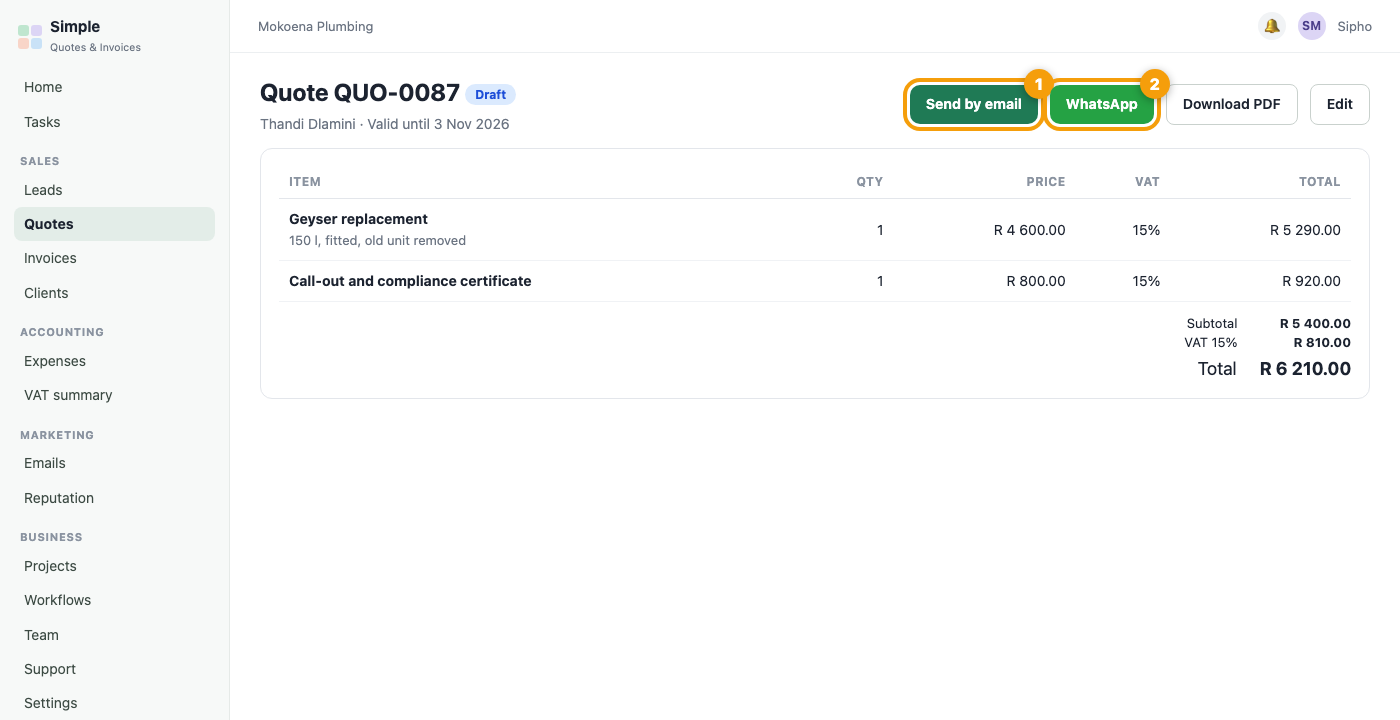
3. Send it
Open the quote. Send by email and WhatsApp are at the top of every quote, invoice and statement. On a phone, the PDF is handed to WhatsApp and you choose the chat. On a computer, the client’s chat opens with a link. You always press Send inside WhatsApp yourself.
Tip: You see a pop-up on your dashboard when a client opens the quote.
4. Turn it into an invoice
When the quote is accepted, open it and press Convert to invoice. Clients can also accept from their link, and you are told in the bell.
5. Send the invoice and get paid
- Send the invoice by email or WhatsApp.
- If online payments are switched on, your client sees a Pay button on the link.
- For an EFT, open the invoice and record the payment when it arrives.
If you make a mistake
- A quote marked accepted or declined by mistake has a Back to sent button.
- A quote converted by mistake can be undone from the quote, by the owner.
- A sent invoice that is wrong needs a credit note.
Was this article helpful?
Did not find it? Contact support