
Set up your business details and branding
Your name, logo, colour, VAT number and banking details appear on every quote and invoice. Set them once, at the start. Allow about 10 minutes.
1. Your business details
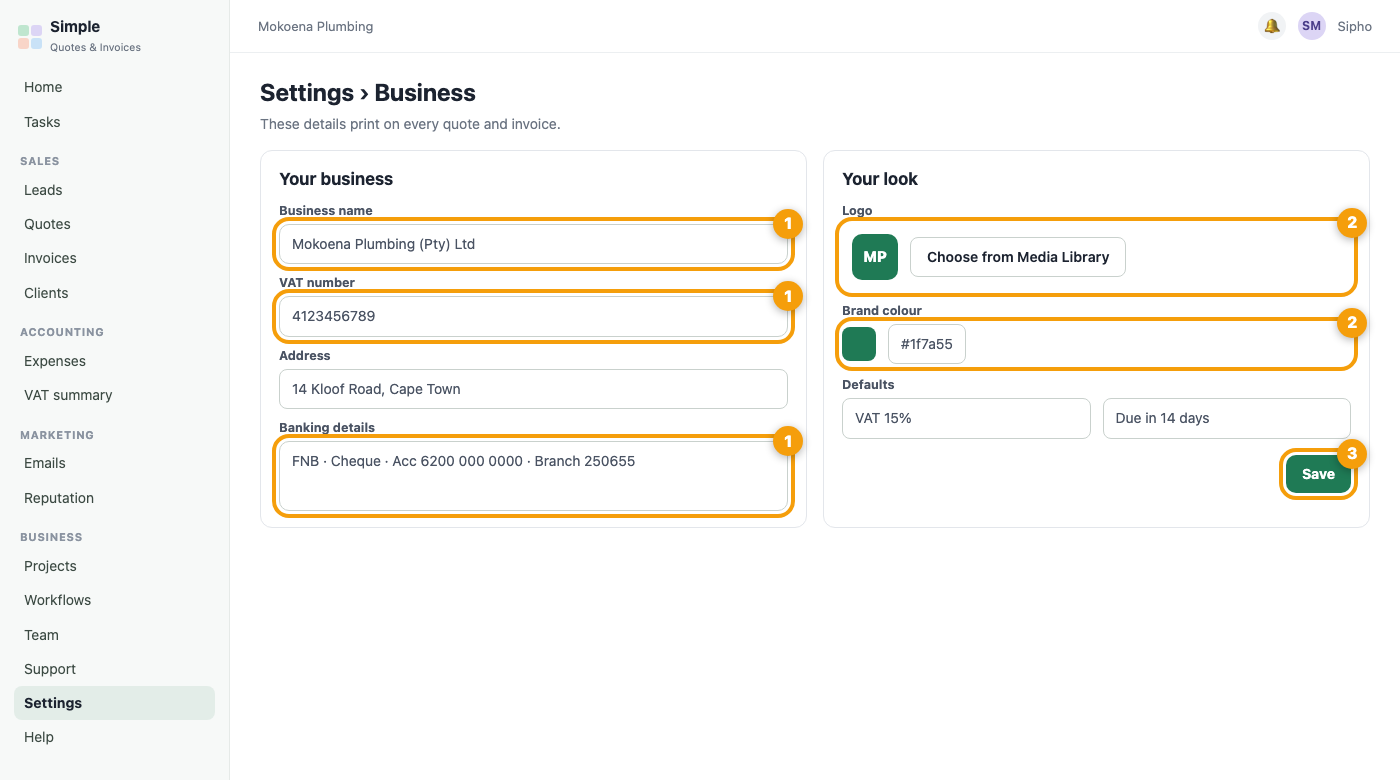
- Open Settings, then Business.
- Fill in your business name, address, phone and email.
- Add your VAT number if you are VAT registered.
- Add your banking details, so clients know where to pay.
2. Your logo and colour
- Choose a logo from the Media Library.
- Pick your brand colour.
- Save. Both appear on your dashboard, the sign-in page, PDFs and the links your clients open.
Tip: Text and icons on green buttons are always white, so a green brand colour looks consistent everywhere.
3. Defaults
Check the VAT rate and the payment terms under Defaults. New quotes and invoices start from them.
4. Your wording
You can rename things such as Tax Invoice, and switch fields on or off, for example the VAT column or the client VAT number.
5. Check a document
Create a quote and open the preview. Look at the logo, the details at the top, the banking details at the bottom and the wording.
Note: Your quotes, invoices, statements, client portal and emails carry your logo and colours.
Was this article helpful?
Did not find it? Contact support