
Get paid online with PayFast
This guide takes you from no online payments to a client pressing Pay and the invoice marking itself paid. You will connect your PayFast account, make a small test payment, and then go live. Allow about 15 minutes.
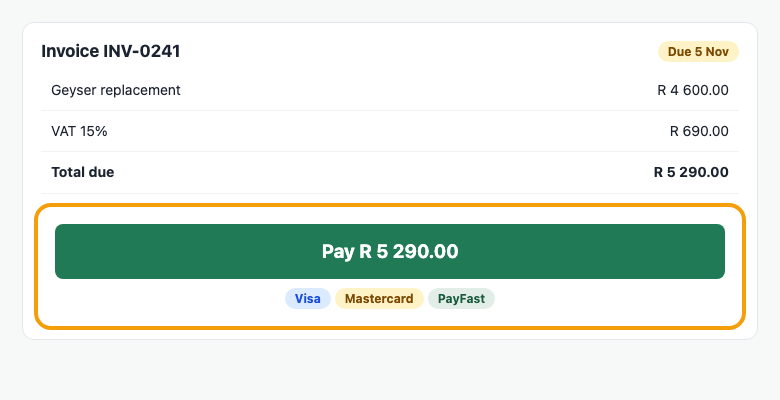
Note: Every invoice you send gets one big Pay button with the amount on it. When a client pays, the payment is recorded for you, the invoice is marked paid, and a receipt can be emailed.
Before you start
- A PayFast account for your business (you can open one at payfast.co.za).
- Your PayFast Merchant ID and Merchant Key, from the integration settings in your PayFast account.
- Your banking details already saved under Settings, Business, so they print on your invoices.
- A few rand for a test payment.
1. Add PayFast to your dashboard
- Open Settings, then Payment receipts and online payments.
- Under PayFast, paste your Merchant ID and Merchant Key, and fill in any other detail the page asks for.
- Leave Test mode switched on for now.
- Press Save.
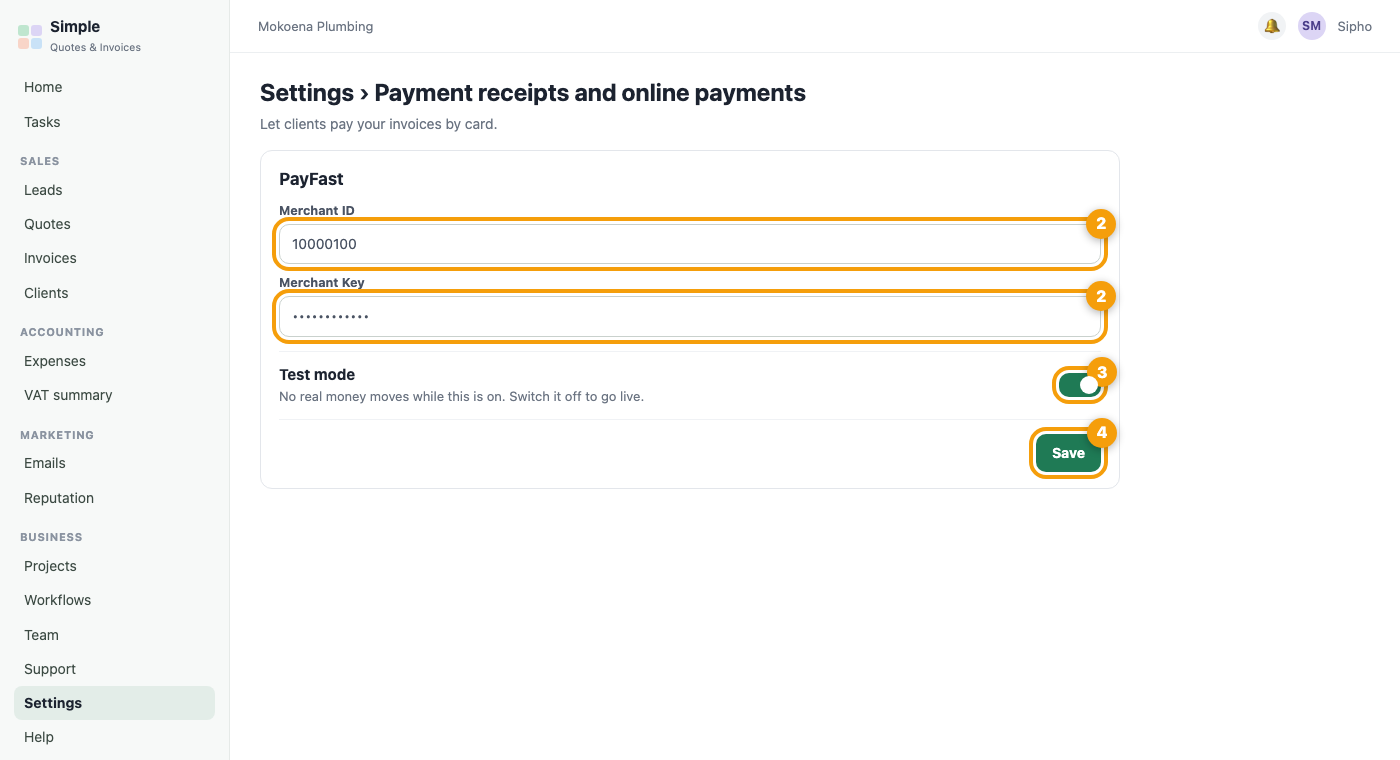
Important: Keep test mode on until step 3 is finished. In test mode a payment is practice only and no real money moves.
2. Check that an invoice shows the Pay button
- Open an invoice that has been sent and still has an amount owing.
- Open its client link and scroll to the foot. You should see one big button such as Pay R 5 290.00, with the card and PayFast logos beneath it.
Tip: No button? Drafts never show one, and a fully paid invoice hides it. Send the invoice first, and check that PayFast is saved.
3. Make a test payment
- Create a small invoice, for example for R 5.00, and press Mark as sent (no email).
- Open the invoice link, press Pay and complete the practice payment.
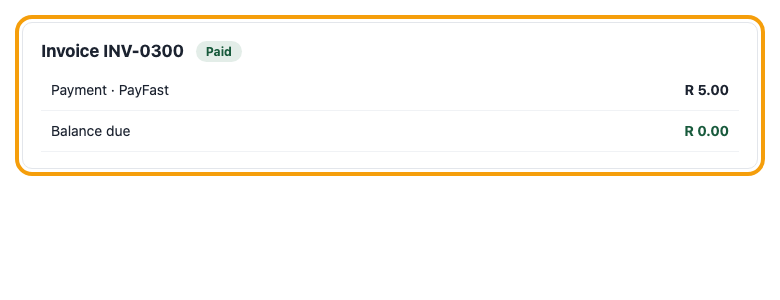
- Go back to the invoice in your dashboard. It should show Paid, with the payment listed and the balance at R 0.00 in green.
4. Go live
- Return to Settings, Payment receipts and online payments.
- Switch Test mode off and press Save.
- Send a real invoice. Your client can now pay straight from the link.
What your client sees
On a computer the pay panel sits in the corner of the invoice. On a phone it is one full-width button under the totals. They pay and come back to their invoice. The same button appears in the client portal.
What happens after they pay
- The payment is recorded once, never twice.
- The invoice is marked paid when the balance reaches zero.
- A receipt is emailed if you have receipts switched on.
- The fee the payment provider takes is added to your expenses, so profit and VAT figures stay right.
- You see it under New since you last looked in the bell.
Refund a client
Open the paid invoice and use the reverse and refund form. For a PayFast card payment the money is sent back for you. If a refund cannot be sent, nothing is recorded and a message explains which step failed.
Note: Payments are never deleted. A reversal or refund keeps the original on the invoice, with a reason and who did it.
If something does not work
- The Pay button is missing. The invoice is a draft, is already paid, or PayFast is not saved. Check step 1.
- The test payment did not mark the invoice paid. Wait a minute and refresh. If it is still unpaid, open Help, System health and log a ticket with what it shows.
- The money has not reached my bank. PayFast pays out on its own schedule, so check your PayFast account.
Was this article helpful?
Did not find it? Contact support