
Track VAT and expenses for your accountant
Record what the business spends, see the VAT you can claim, and give your accountant everything in one file. Allow about 10 minutes to set up.
1. Set up your VAT
- Open Settings, VAT and expenses (owners).
- Choose your basis (invoice or payments) and your period (monthly, every two months or six-monthly). Both are on your SARS VAT registration.
- Edit the expense categories if you want, and keep receipts switched on.
2. Add an expense
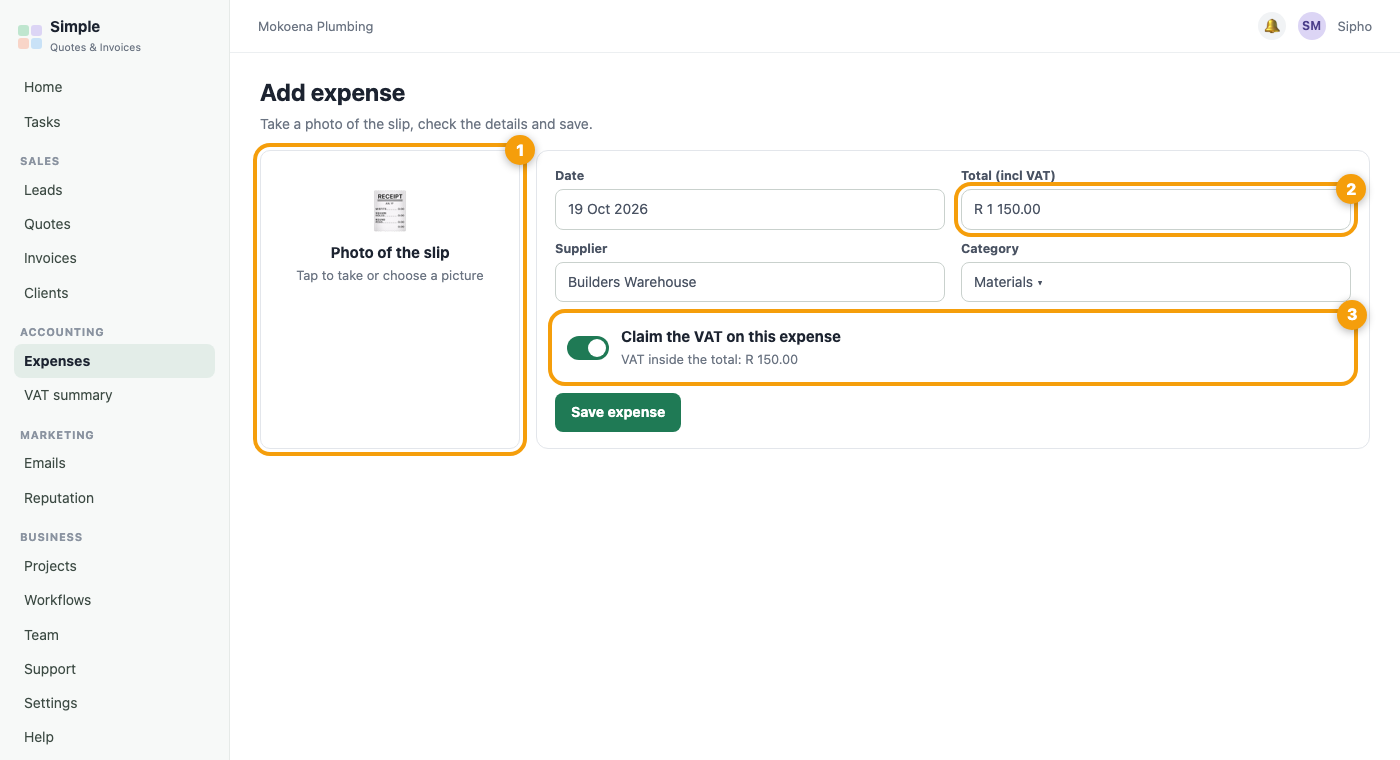
- Open Expenses and press Add expense.
- On a phone, take a photo of the slip.
- Check the date and total, pick a category and save. The VAT inside the total is worked out for you and you can change it.
3. Decide whether you can claim the VAT
You can only claim VAT when you hold a valid tax invoice from a VAT-registered supplier. Switch off Claim the VAT on this expense when you cannot, for example for entertainment or a slip without the supplier’s VAT number.
4. Bills you have not paid yet
On the Bills tab press Add bill with a due date. You are reminded in the bell before it is due. Press Mark paid when you pay. Until then it does not count as money out.
5. Costs that repeat
On the Recurring tab add costs such as hosting or insurance. On each date the app adds the expense for you, as a bill to pay or as already paid.
6. Read the VAT summary
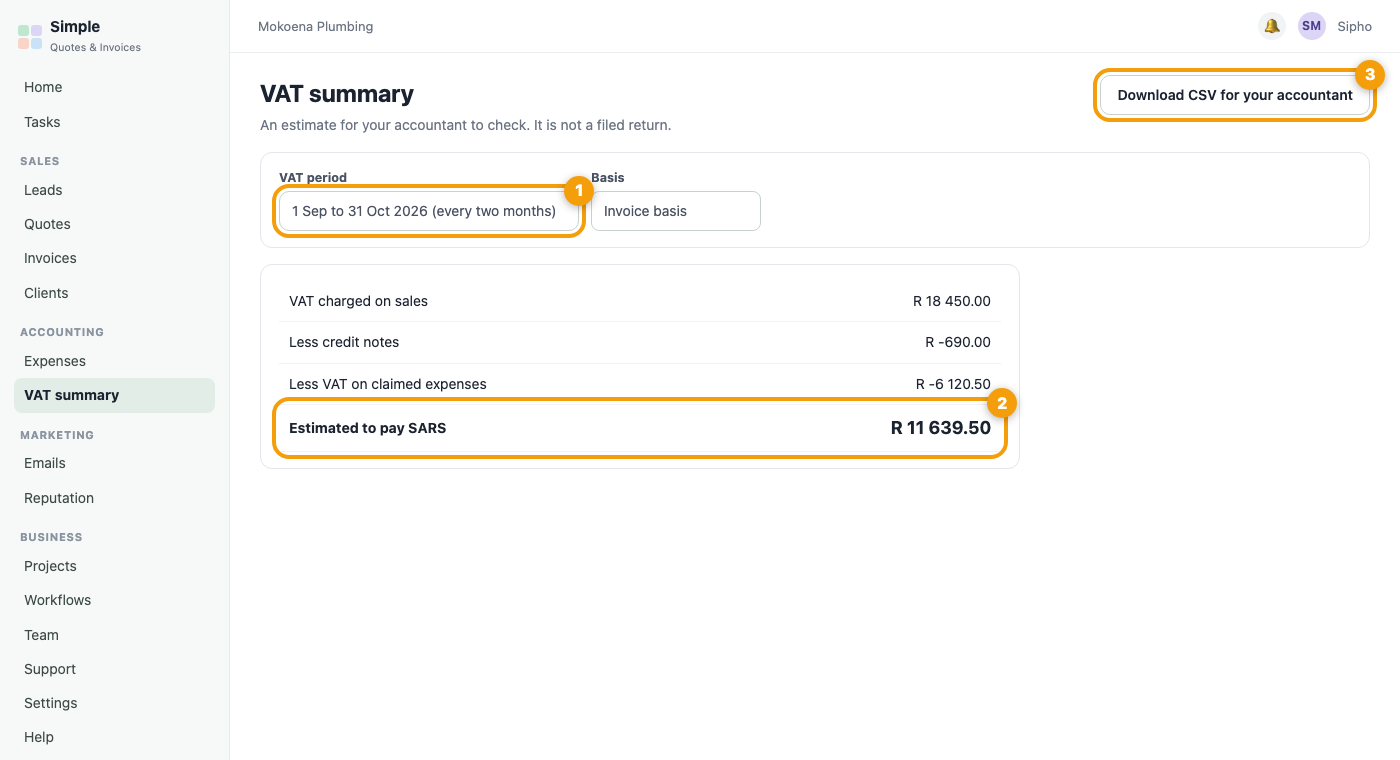
The VAT summary tab adds up the VAT you charged on sales, less credit notes, and subtracts the VAT on your claimed expenses for a period. The result is an estimate of what you owe SARS or what they owe you.
7. Send it to your accountant
Press Download CSV for your accountant. The file has the summary, the invoices or payments, the credit notes and every expense for the period.